Thursday, February 1, 2024

Automated Testing for General-Purpose Engineering Simulation CAE Software

 The automated testing system is an essential facility for modern large-scale software. Given that the computational results of general-purpose CAE simulation software have complex functionality, long term maintenance, and high requirements, it’s necessary to have an automated testing system to maintain the robustness and accuracy of the product. In addition to the testing system, a vast amount of test cases is another crucial intelligent asset, which require a significant investment of development resources. The author has previously detailed information on the automated testing of CAE software, as seen in the articles “Automated Regression Testing for General-Purpose Engineering Simulation CAE Software” and “Quickly Create Regression Test Cases for WELSIM”. This article focuses on the running tests for engineering simulation CAE software.

Currently, major CAE software on the market do not publicly disclose their automated testing systems; they are only provided for internal development use. End-users do not have access the testing systems. In this day and age, WELSIM is the only general-purpose CAE software that opens up its automated testing system and discloses open-source test cases worldwide. Therefore, the only software this article can use for demonstration is WELSIM.

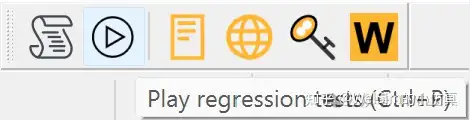
After WELSIM, locate the command for automated testing in the GUI’s menu bar or toolbar.

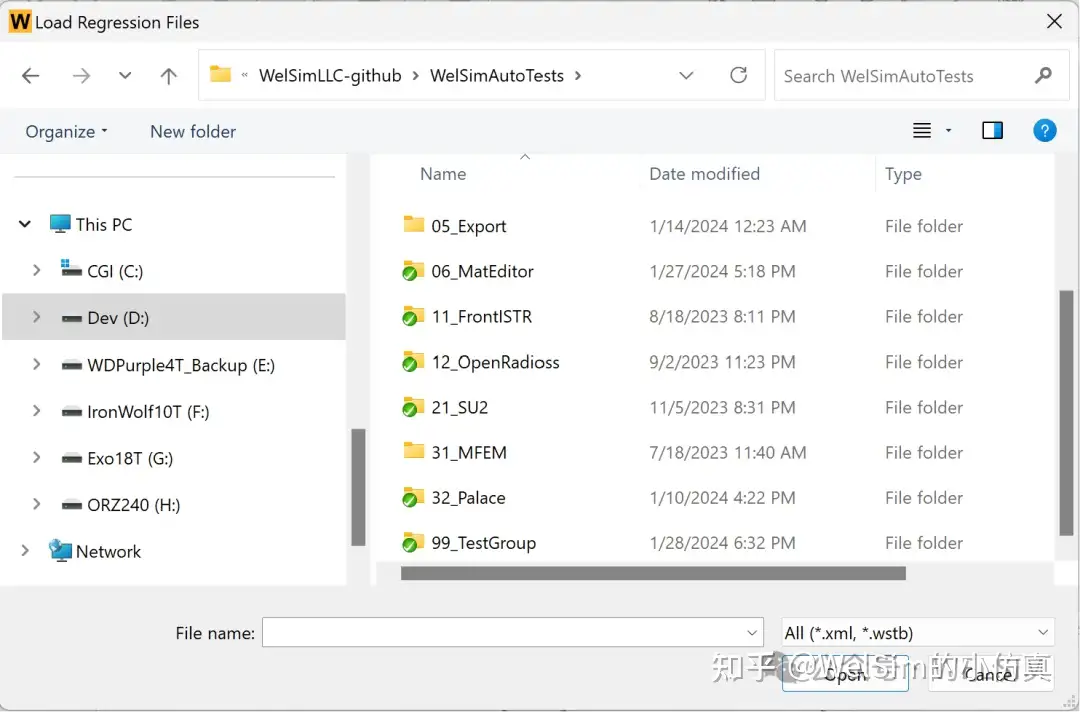
Click the “Play Test” button and select the tests from the dialog.

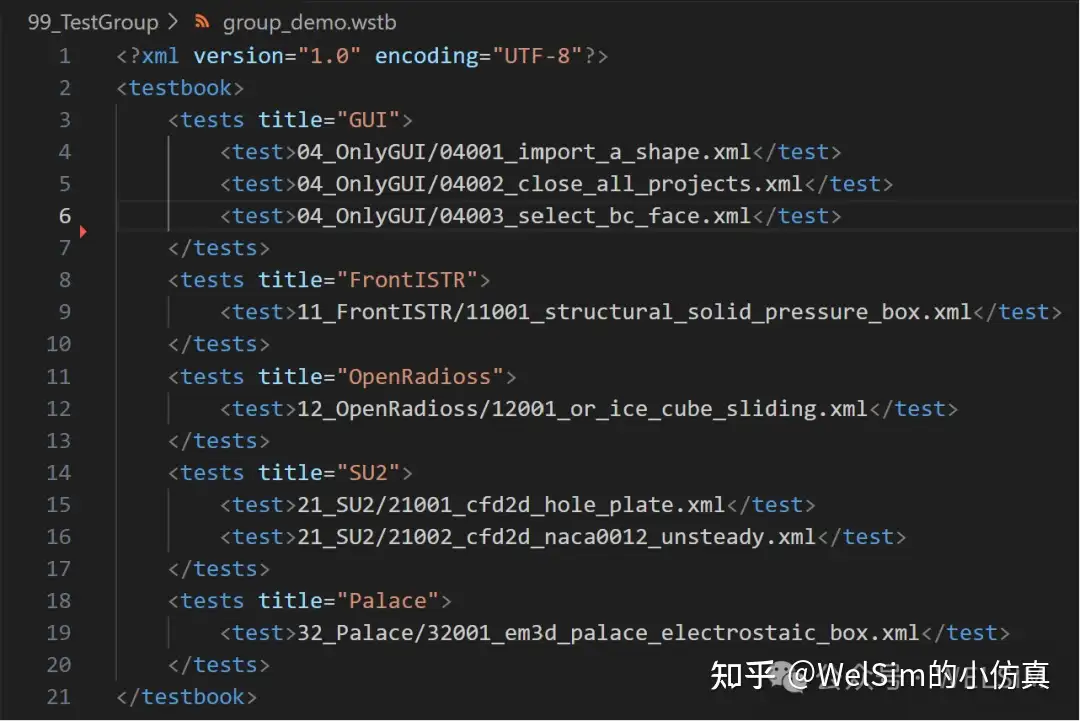
Currently, the reading of the test files supports two formats: xml and wstb. Xml represents specific individual tests, while wstb can contain multiple files for testing. As shown in the following picture, wstb is essentially a collection of xml test files.

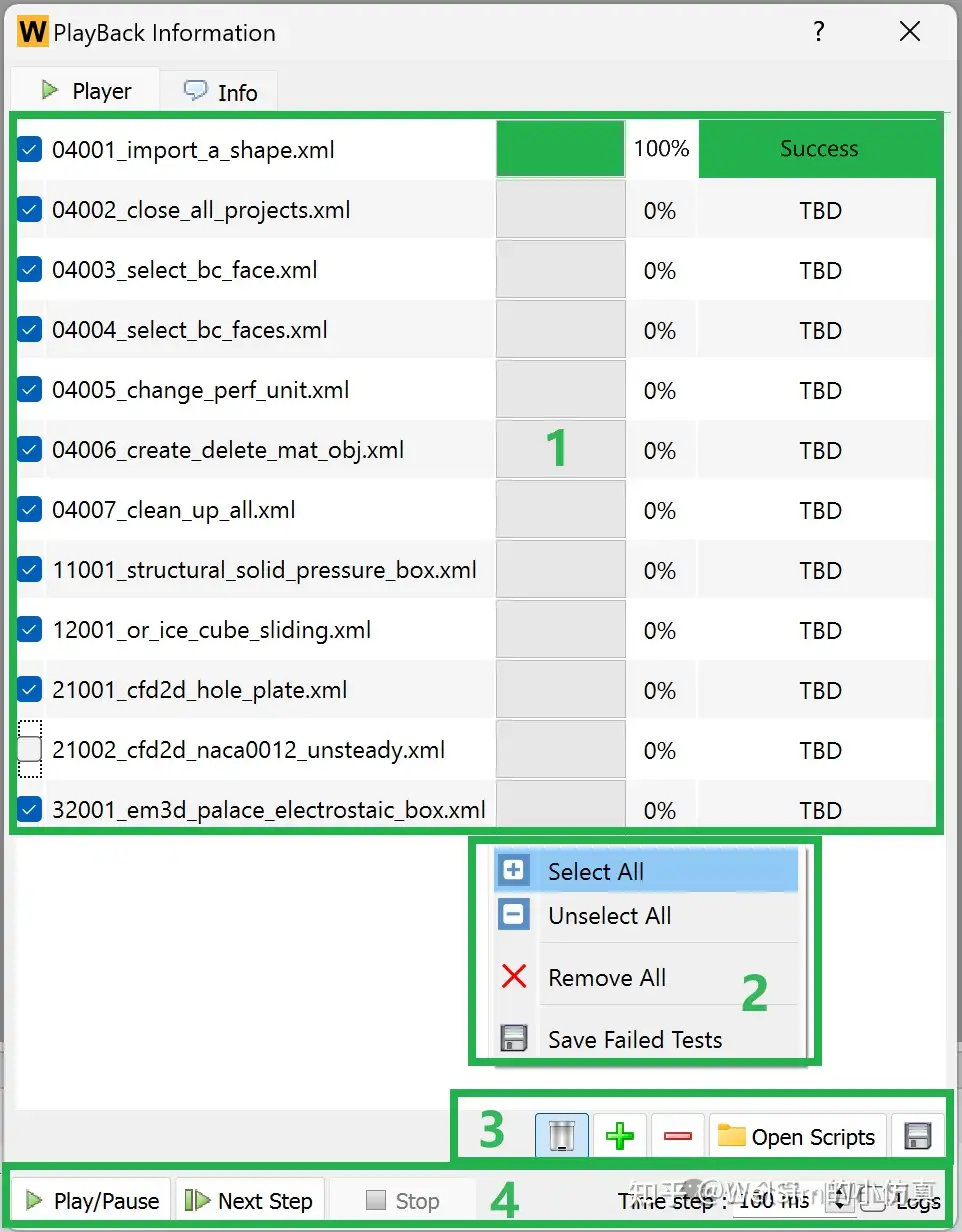
After reading the test file, the main testing user interface will be displayed. If a valid test file was selected in the previous step, then the main window will list it. The testing main interface has numerous functions that will be explained in four separate areas.

Area 1 occupies the majority of the interface, facilitating the display of a large number of test cases. Users can toggle cases on or off, depending on what they want to run. Each case has a progress bar to display the current testing progress. Additionally, each case has a test result, with a green background indicating “Success” for passing tests, and a red background indicating “Failed” for failed tests.

Area 2 features the right-click context menu, offering common functions such as select all, deselect all, remove all, save test files, and more. The position of the context menu is flexible and depends on the location of the mouse-click, typically in a blank area.

Area 3 displays essential buttons, like the buttons to add cases, remove cases, and save test files. The button selected in the picture above is the trashcan button. When selected, the system will automatically clean up and delete the project after the test is finished. When the project is not closed after a test, users can manually save the project as a wsdb file. This feature is useful for users to investigate the cause of a failed cause. The “Save Test” button can save the currently failed cases, allowing users to rerun them after fixing the issues.

Area 4, at the bottom of the main interface, provides vital functions for running, pausing, and stopping tests. The default time for each step of the test is 100 milliseconds, but users can modify it. WELISM also supports displaying logs.

The testing time depends on the number and size of cases. A quick test set usually completes within 10 minutes, while long-term tests typically finish within 15 hours. When all tests pass, the product’s current state is considered relatively stable. If failed cases are identified, they can be run individually to investigate the causes. Then, appropriate updates to the software or test scripts can be made.

Test File Format

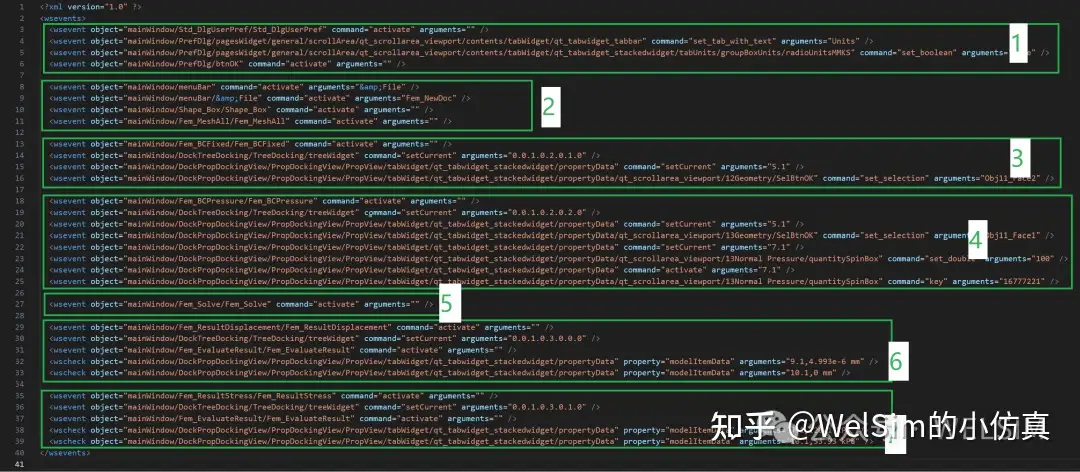
XML files are simple, intuitive, and have great machine readability and writing performance, making them suitable as an automated test file format. The image below provides an example of a simple structural analysis test file.

In respect with the numbering, the file is divided into 7 sections:

1. Selecting the unit system.
2. Creating a new project; adding a cube and meshing.
3. Adding a fixed boundary condition, selecting a face.
4. Adding a pressure boundary condition, selecting a face, and setting the pressure value.
5. Solving.
6. Adding a displacement result, evaluating and validating the results.
7. Adding a stress result, evaluating and validating the results.

Each element in the test script has three attributes: object, command, and arguments. Object is used to locate the QT widget related to the GUI, corresponding one-to-one with the object names in the software product. Command has options like activate and setCurrent. Arguments define additional parameters, such as table index, boundary selection, numerical values, key values, etc.

There are two types of elements: wsevent for event-driven actions, executing each step operation, and wscheck for validating a specific value. Engineering simulation software need to ensure the accuracy of calculation results, so wscheck units are used for this task. During the execution of wsevent operations, extensive checks on software controls are performed to detect software defects like crashes, memory leaks, etc.

Behavior

Running the WelSim automated test requires adding the environment variable WELSIM_DATA_ROOT to the test case folder. Instructions are provided in the test case package.

Automated testing can only detect the functions covered by the test cases, so it will need continuous maintenance and an addition of test cases, as the CAE software evolves. WelSim has opened its testing system and released open-source test cases, allowing developers of solvers and backend applications to ensure accuracy and stability, without the burden of creating their own automation systems.

The WelSim automated testing system is based on the software itself and can only be conducted after the software is launched. Some large software testing frameworks are independent processes that test the target software through inter-process communication. Both testing frameworks are effective, and developers can choose based on the software’s characteristics and their technical stack.

Automated testing files are not limited to XML format. Depending on the software architecture and testing requirements, they can be in formats like Python or JavaScript, each with its advantages.

The current WELSIM testing framework does not save test results, but future versions may support result storage. However, results can be displayed through a webpage, and historical test data retrieval is supported, facilitating long-term product maintenance.

Tuesday, January 30, 2024

自动化测试大型通用工程仿真CAE软件

自动化测试系统是现代大型软件的必备设施,通用CAE仿真软件由于功能复杂,维护时间长,对计算结果要求高,因此必须要有自动化测试系统来维护产品的鲁棒性与精确性。除了测试系统以外,海量的测试算例也是重要的知识资产,需要投入大量的开发资源。笔者曾详细介绍了CAE软件的自动化测试相关内容,参见《快速创建WELSIM的回归测试算例》、《大型工程仿真CAE软件的自动化回归测试》二文。本文着重介绍运行工程仿真CAE软件的自动化测试。

目前市面上的大型CAE软件不公开自动化测试系统,只提供给内部研发人员使用,终端用户无法使用测试系统。WelSim是世界上目前唯一一款开放自动化测试系统并开源算例的通用CAE软件,因此本文只能使用WelSim作为演示。

软件启动后,在图形化界面的菜单栏或工具栏中找到自动化测试的命令。

并点击运行测试命令后,提示选择要添加的测试文件。

目前测试文件的读取支持xml和wstb两种格式,xml是具体的单个测试文件,wstb可以包含多个测试的文件。如下图所示,wstb本质上是xml测试文件的集合。

读取测试文件后,会显示测试主界面。如果在上一步选择了有效的测试文件,主界面会列表显示测试案例。测试主界面功能较多,这里分为4个区域分别说明。

区域1占据了大部分界面,便于显示大量的测试算例。用户可以勾选或取消将要运行的算例。每个算例都有一个进度条,用于显示当前测试的进度。每个算例有一个测试结果,测试通过会以绿色背景显示Success,测试失败会以红色背景显示Failed。

区域2显示鼠标右键点击弹出菜单,提供了如勾选全部、取消全部、删除全部、保存测试文件等常用功能。弹出菜单的位置不固定,取决于鼠标点击位置,通常是空白区域。

区域3显示一些必要按钮,如单个测试完成后删除项目,添加算例,删除算例,保存测试文件等功能。系统默认是在每个测试结束后关闭当前项目,用户可以通过点击此按钮更改,测试完成后就不会关闭项目,此时可以手动保存项目为wsdb文件。当算例测试失败时,此功能方便测试人员查找原因。保存测试按钮可以保存当前测试失败的算例,方便用户在修复问题后再次运行。

区域4在主界面底部,提供了运行测试的关键按钮,用户可以运行,暂停,或停止测试。默认测试每步的时间为100毫秒,用户可以更改。同时支持显示测试日志。

测试的时间取决于算例的多少以及每个算例的大小。快速测试通常在10分钟内完成。长期测试通常在15个小时内完成。测试全部通过时,可以认为产品当前状态是相对稳定的。当测试发现失败的算例,可以再次单独运行此算例,并查明原因。对软件或测试文件进行相应的更新。

测试文件格式

XML文件简单直观、易于阅读,同时具有较好的机器读写性能。适合作为自动化测试文件格式。下图给出了一个简单CAE结构仿真分析的测试文件。

按照编号,将文件分为了7个部分,分别是:

  1. 选择单位制。
  2. 新建项目,新建一个立方体,并划分网格。
  3. 添加一个固定边界条件,选择一个面。
  4. 添加一个压力边界条件,选择一个面,并设置压力值。
  5. 求解。
  6. 添加一个位移结果,读取并验证结果。
  7. 添加一个应力结果,读取并验证结果。

文件中每个单元含有三个属性,分别是object, command, 和arguments。object用于定位GUI相关的QT控件,与软件产品中的控件名称一一对应。command有激活(activate),设置当前(setCurrent)等选项。arguments定义额外的参数,如表格的行与列,边界的选择,数值,按键值等。

单元类型有两类,wsevent用于进行事件驱动,也就是执行每一步操作。wscheck用于验证某项数值,工程仿真软件需要保证计算结果的准确性,wscheck单元来完成这个任务。当然在执行wsevent的各种操作时,也对软件控件有大量检测,用于发现如程序崩溃,内存泄露等软件缺陷。

行为与局限

运行WelSim的自动化测试需要添加环境变量WELSIM_DATA_ROOT至测试算例文件夹。测试案例包中已做说明。

自动化测试只能检测算例已经覆盖的功能,因此需要随着CAE软件的发展不断的维护和增加算例,是一个长期的过程。WelSim开放了测试系统并开源测试算例,求解器等后端应用的开发者们无需创建自己的自动化运维系统,可以直接添加测试算例来保证后端应用的精度与稳定性。

WelSim自动化测试系统是基于软件本身的,在软件启动以后才能进行测试。而有的大型软件测试框架是独立的进程,通过进程间通讯来对目标软件进行测试。这两种测试框架都是可行且有效的,开发者可以根据软件特点和自身的技术栈进行选择。

自动化测试文件可以不局限于XML格式,根据软件构架的不同,和测试需求的不同,可以是Python或JavaScript等其他解释型语言格式,都有各自优点。

当前WelSim的测试框架,不保存测试结果,在以后的版本中可能支持测试结果的保存。结果可以通过网页显示,并支持历史测试数据的查找。便于产品的长久维护。

Friday, January 5, 2024

WELSIM releases the 2024R1 version, enhancing 3D electromagnetic analysis

 The general engineering simulation analysis software WELSIM has released its latest 2024R1 version (internal version number 2.8). Compared to the previous version, the 2024R1 version has new added features to better support various types of engineering CAE analysis, especially calculations related to electromagnetics.

Large-scale electromagnetic computation

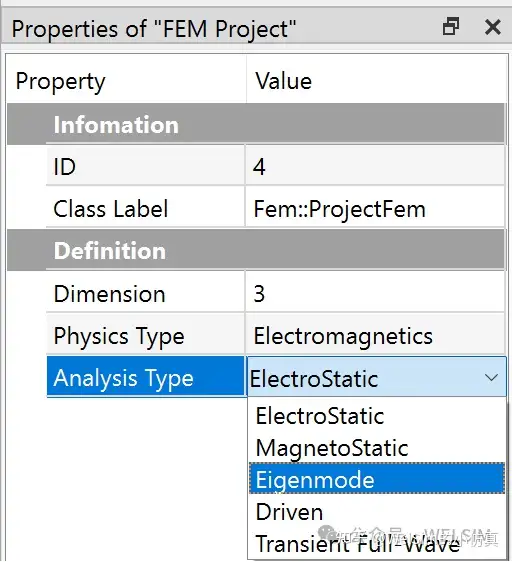
On the basis of existing electrostatic and magnetostatic field analysis functions, 3D Eigenmode, Transient, and Driven analysis types have been added. At the same time, the electromagnetic field supports high-performance parallel computing. This widens WelSim’s application scope and increases computational speed.

A free compiled Windows-version of the open-source electromagnetic solver Palace is provided. Now, Palace users do not need to compile it themselves, and they can utilize Palace for large-scale electromagnetic field computation on Windows. This product can be obtained in the palace.exe executable file from the WELSIM installation package, or be downloaded it from the WelSim GitHub page.

Support for importing GDSII geometric models

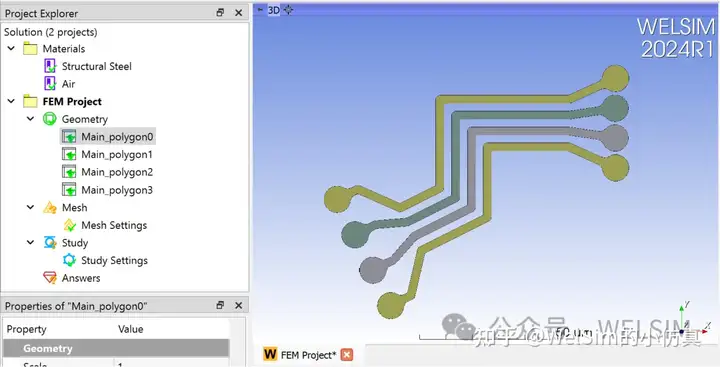
The geometric preprocessing module now supports the widely used GDSII format in the integrated circuit and chip industry. Users can apply WelSim to read GDS files, generate 2D solid models, and perform subsequent operations such as meshing and analysis calculations. Users can also directly export solid models to the well-established STEP format in the CAD industry.

3D layer selector

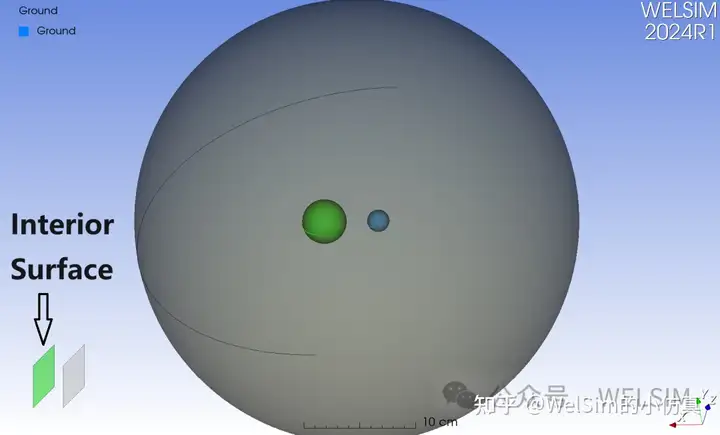
Additionally, the new version introduces a layer selector. When the mouse selects a position with multiple entity surfaces, a layer selector will appear at the bottom left corner of the 3D graphics window, allowing users to easily choose the inner surface of the geometric body or the obstructed surface. This feature enhances the preprocessing capability for three-dimensional fluid, electromagnetic, and complex assembly bodies.

Linux version upgrade

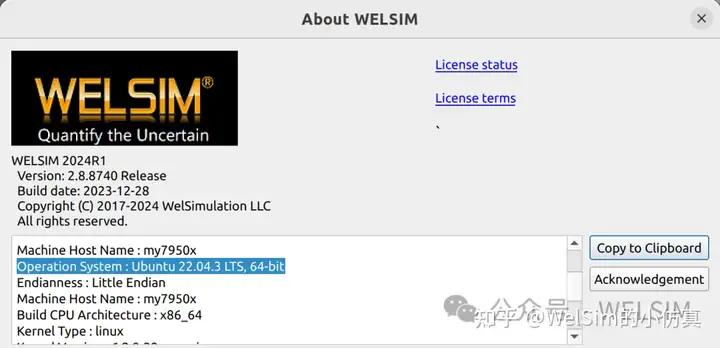
The Linux version has been comprehensively upgraded to Ubuntu 22.04 LTS, with the compiler upgraded to GCC 11. All dependent libraries have been compiled and upgraded as well. This makes running WELSIM in the Linux environment much faster and more stable.

Other enhancements

In addition, the WELSIM’s new version includes other enhancements and optimizations, such as improved scale rulers for measuring microscale geometric bodies, the addition of the Metric unit system (kg, mm, ns, A, N, V) for high-frequency electromagnetic transient analysis, and other minor features.

WELSIM will continue to maintain rapid development and stable maintenance, contributing to the simulation community.

WelSim is not affiliated with Palace, and the author has no direct relationship with the Palace development team and institution. The reference to Palace here is solely for technical blog articles and software usage.

Thursday, January 4, 2024

WELSIM发布2024R1版本,增强三维电磁场分析

 通用工程仿真分析软件WELSIM发布了最新的2024R1版本(内部版本号2.8)。相对于上一个版本,2024R1版本增加了新的功能,能够更好地支持各种类型的工程仿真CAE分析,尤其是电磁场相关的计算。

大规模电磁场计算
在已有的静电场与静磁场分析功能的基础上,新增了三维特征模态,瞬态,和频域驱动分析类型。同时,支持电磁场功能的高性能并行计算。使得软件的应用范围更广,计算速度更快。

免费提供开源电磁求解器Palace的Windows 编译版本,Palace的用户无需自行编译,即可在Windows上使用Palace进行大规模电磁场计算。使用者可以从WELSIM的安装包中获得palace.exe可执行文件,也可以从WelSim的GitHub页面上下载palace.exe文件。

支持导入GDSII几何模型

几何前处理模块新增支持了集成电路与芯片行业广泛应用的GDSII格式,用户可以使用WelSim读取GDS文件,生成2维实体模型,并进行网格划分、分析计算等后续相关操作,也可以直接导出实体模型为CAD领域广泛接受的STEP格式文件。

三维图层选择器

新版本增加了图层选择器,当鼠标点选的位置含有多个实体表面时, 在三维图形窗口左下角会显示图层选择器,方便用户选择几何体的内表面,或被遮挡的表面。此功能增强了三维流体、电磁、和复杂装配体的前处理能力。

升级Linux版本

全面升级Linux版本至Ubuntu22.04 LTS,升级编译器至GCC 11,同时编译并升级了所有依赖库。使得在Linux环境下运行WelSim更快更稳定。

其他增强与升级

此外,新版本还有其他增强与优化。如增强刻度尺对微小几何体的度量,新增单位制Metric (kg, mm, ns, A, N, V)可用于高频电磁瞬态分析,等其他小功能。

WELSIM会继续保持快速的研发与稳定的维护,为仿真社区做贡献。


WelSim与作者不隶属于Palace。和Palace开发团队与机构没有直接关系。这里引用Palace仅用作技术博客文章与软件使用的参考。

Saturday, December 23, 2023

Select the interior surface of three-dimensional shapes using selection layer view

 In three-dimensional CAE simulation analysis, it is often necessary to select interior surfaces of geometric bodies or choose surfaces that are occluded. This is applicable when setting up contact conditions for complex assemblies in structural analysis, defining boundary conditions for inner surfaces in electromagnetic, fluid, or thermal analyses, among other scenarios. Such requirements pose significant demands on the pre-processing modules of engineering simulation software.


Currently, a common approach in the industry is to add a selection layer view in a small region within the 3D graphics window. This feature displays the selection layers after clicking on a geometric body, enabling the user to modify the desired surfaces. This method is simple, intuitive, and provides a good user experience. However, this service adds extra software development work, as it requires incorporating an additional viewport in the 3D window. When implementing a selection layer view, the impact the feature has on the overall software performance must also be payed attention to.

Selection layer view

In the model below, there is a sphere with two small spherical cavities inside. When the model is set to be semi-transparent, the positions and sizes of the internal cavities can be observed. In 3D electromagnetic analysis, the exterior surface is often set as the far-field boundary, and various excitations are applied to the inner surface, such as voltage. Similarly, in fluid and thermal analysis, certain boundary conditions are set for the inner surface. In such cases, the GUI operation needs to be able to select the interior surfaces of the sphere.


When clicking on the position of the internal spherical cavity, the default outermost surface is selected and highlighted in green. If there are more optional surfaces, the layer view will be displayed. At this point, the layer view shows two layers: the unselected inner surface on the left, represented in gray; the selected outer surface on the right, highlighted in green.

Moving the mouse to the left side of the layer view automatically selects the left layer. Now, the model updates the selected surface shown - the inner surface is now selected and highlighted in green.

The layer view simplifies the process of selecting inner surfaces. In this example, a spherical model demonstrates how to select the inner surfaces of 3D geometric bodies. The video demonstration is as follows:

This method is correspondingly applicable to other types of geometric bodies. When the position of the mouse click involves multiple surfaces, the layer view will display the corresponding number of layers. If the position involves fewer than two surfaces, the layer view remains hidden.

The layer view is a new feature introduced in the WELSIM 2024R1 version, primarily aimed at enhancing the pre-processing capabilities in three-dimensional fluid and electromagnetic simulations.